Content categories (sections)
What it is: Content categories (called sections in the editor) let you organize a link page into named groups — for example “My socials”, “Shop”, or “Partners” — instead of one long, flat list of buttons and cards.
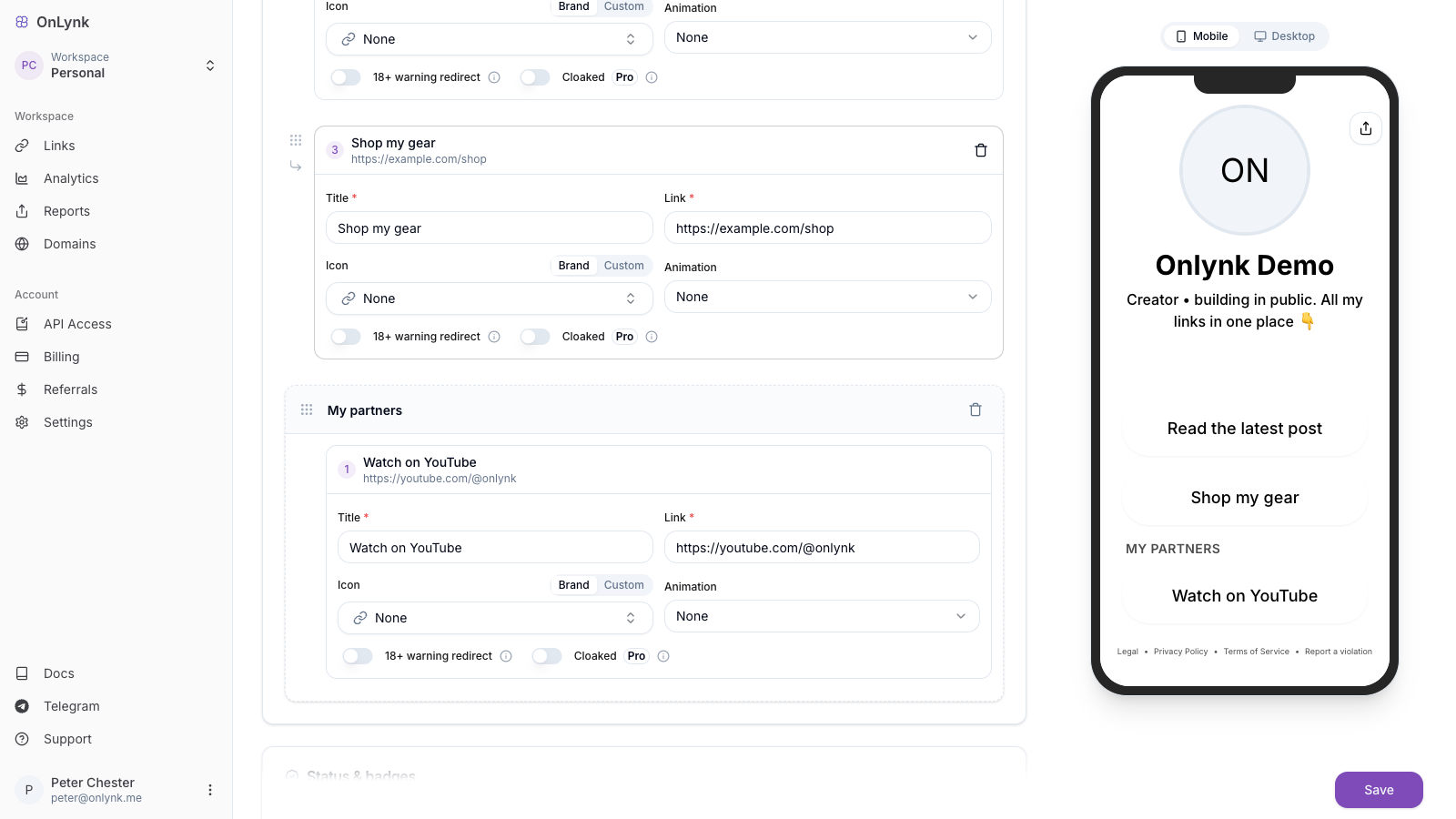
Why use sections
Section titled “Why use sections”A link page can quickly accumulate dozens of links and cards. Sections help visitors scan and find what matters:
- Group related content under a clear heading (e.g. “Latest videos”, “Affiliate offers”).
- Order everything yourself — sections and ungrouped items share one continuous sequence, so you decide exactly what appears first.
- Mix links and cards inside the same section.
Items that are not assigned to a section render at the page root, interleaved with your sections in the order you set.
How it works
Section titled “How it works”Each section is a named container with its own position on the page:
| Concept | Behavior |
|---|---|
| Section title | The heading shown above the grouped items on your public page. |
| Members | Any link (button) or card can belong to one section. |
| Ungrouped items | Links/cards with no section render directly at the page root. |
| Order | Sections and ungrouped items share one global sequence — there is no separate “links list” then “cards list” anymore. |
Mental model: think of your page as a single ordered stream of blocks. Some blocks are standalone links or cards; others are sections that contain links and cards. You drag any block to any position.
Editing sections
Section titled “Editing sections”Sections are managed in the Content tab of the page editor:
- Open your link page in the dashboard → Edit → Content tab.
- Use Add section to create a new named group.
- Rename a section by editing its title field.
- Add links and cards to a section, or drag existing items into it.
- Drag and drop to reorder items within a section, move them between sections, or reorder the sections themselves relative to ungrouped items.
- Remove a section when you no longer need it — its items are not deleted, they return to the page root.
- Save to publish the new structure.
Ordering
Section titled “Ordering”Ordering is unified across the whole page:
- A section and a standalone link share the same ordering scale, so you can place a single highlighted button above an entire section, or tuck a section between two cards.
- Inside a section, members keep their own order.
- Reordering is drag-and-drop in the Content tab and is persisted on save.
Works with other features
Section titled “Works with other features”- Create your first link page — Full editor reference, including the Content tab.
- Page analytics — Clicks on links and cards are tracked the same way whether or not they sit inside a section.
Related
Section titled “Related”- Glossary — Definition of section and content ordering.
- Create your first link page — Where links, cards, and sections are configured.