Create your first link page
Full guide: This page covers the whole flow — getting to the editor, every field and option, and publishing. For account and plan context, see Onboarding.
Getting to the editor
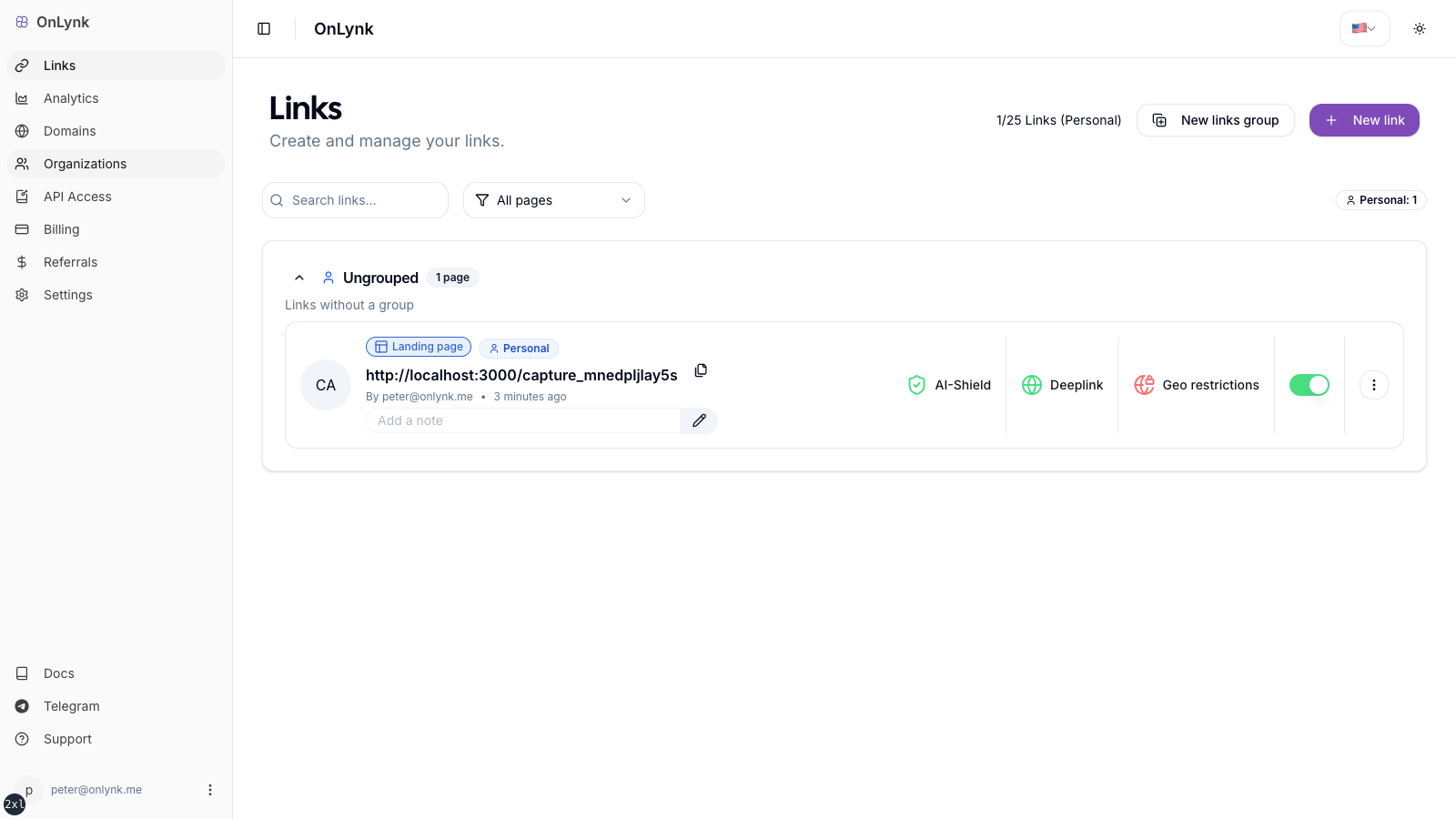
Section titled “Getting to the editor”After you sign up or sign in, you land in the dashboard, where you manage your link pages, billing, and settings. Start with Create new link (wording may vary) to open the editor.
Overview
Section titled “Overview”In the dashboard, a link page (often labeled “link”) is your public landing page. It can include:
- A header (banner and avatar or picture)
- Social icons with outbound URLs
- Link buttons and card tiles that send visitors to destinations
- Optional marketing features—deeplink behavior, geo-restrictions, chatbot, Meta Pixel—when your plan supports them
Public availability is controlled with the published toggle.
At a glance
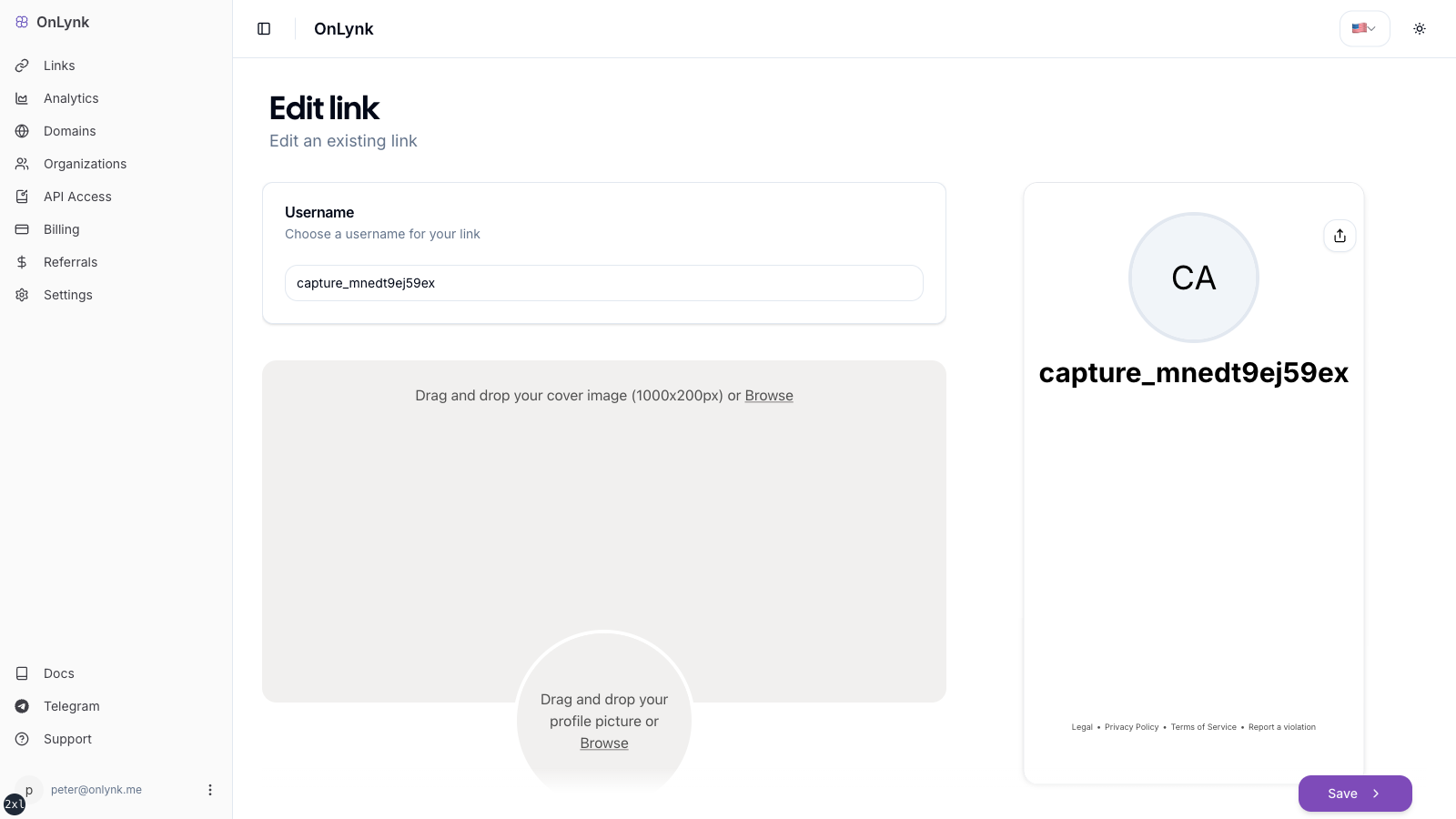
Section titled “At a glance”- Pick a unique slug (username).
- Fill link details (title, description, optional direct link URL if your plan includes it).
- Add socials, links, and cards; group them into sections and reorder as needed.
- Set the design (page style, button shape/fill, font, colors, and background gradient).
- Configure marketing and chatbot options if unlocked.
- Publish and share your URL.
Editor layout
Section titled “Editor layout”The page editor is organized into tabs, with a live device preview alongside:
| Tab | What you configure |
|---|---|
| Content | Slug, link details, socials, links, cards, and sections (content categories) with drag-and-drop ordering |
| Design | Page style, button shape and fill, font, colors, and background gradient |
| Marketing | Direct link, deeplink, geo-restrictions, Meta Pixel, and other plan-gated controls |
| Settings | Publishing, advanced options, and page-level settings |
Step-by-step
Section titled “Step-by-step”1. Slug (username)
Section titled “1. Slug (username)”In the Username step, define your slug:
| Rule | Detail |
|---|---|
| Length | 3–32 characters |
| Characters | a-z, A-Z, 0-9, _, . |
| Dots | Not allowed at the start or end |
If the slug is taken, you will see an error (for example “username already exists”).
2. Link details
Section titled “2. Link details”Under Link details, set:
- Title and Description
- Direct link (optional)—only if your subscription includes direct links; otherwise the field stays disabled
Direct link behavior (bots, fallback landing page, and risk reduction)
Section titled “Direct link behavior (bots, fallback landing page, and risk reduction)”When Direct link is set, OnLynk uses it as your primary destination, but the exact behavior depends on Deeplink, in-app browsers, and bot detection.
Quick mental model: humans are routed toward your Direct link (sometimes via a deeplink attempt), while bots/crawlers stay on the landing page to reduce flags.
1) Bots / crawlers (risk‑reduction path)
Section titled “1) Bots / crawlers (risk‑reduction path)”- If a bot/crawler is detected, OnLynk stays on the landing page (
/<slug>) instead of auto-forwarding to the destination.
This “landing page fallback” is intentional: many social platforms run automated checks with bot-like fetchers. Serving a compliant landing page to those fetchers can reduce flags or enforcement risk compared to always exposing the raw destination URL.
2) Humans with Deeplink OFF
Section titled “2) Humans with Deeplink OFF”- If Deeplink is disabled and the visitor is not a bot, the page redirects directly to your Direct link URL.
3) Humans with Deeplink ON (Direct link is used for the deeplink attempt)
Section titled “3) Humans with Deeplink ON (Direct link is used for the deeplink attempt)”With Deeplink enabled, OnLynk still uses your Direct link as the target URL and then:
- In some in‑app browsers (Instagram, etc.), it can attempt to open the app via a deeplink derived from your Direct link (and may show “exit steps” when required).
- In regular browsers (not in‑app), it may still auto-redirect to the Direct link, but the deeplink-specific logic controls when it tries to open an app first.
- For landing pages without a Direct link, a per-page “Stay in the in‑app browser” option keeps visitors on the landing inside the in‑app browser and deeplinks only when they tap a link, instead of switching to their default browser on load (see Deeplink).
Notes:
- Query params forwarding: when a human is redirected, OnLynk forwards query parameters from the OnLynk URL to your Direct link (while preserving parameters already present on the Direct link).
- Analytics: the human redirect path records a redirect event; bot traffic is handled differently (see AI Shield and Glossary).
- Recommendation: if your destination is policy-sensitive, prefer leaving Direct link empty and use the landing page + buttons/cards instead (see Direct link and Social media policies & risks).
Tip: If you’re getting link blocks or account limits, stop using Direct link for a while and share the /<slug> landing page instead. Keep destinations compliant (see Compliance).
3. Socials
Section titled “3. Socials”In Social manager:
- Use Add social link for each network
- Choose the network type and paste the URL
- Drag and drop to reorder
4. Links (buttons)
Section titled “4. Links (buttons)”In Links manager, each button supports:
- Title and Link (URL) (required)
- Icon, animation / effect (optional)
- Adult content confirmation (optional)
- Cloaked (optional)—only if your plan includes cloaking
Redirect behavior
- Not cloaked: visitors go to the URL you entered.
- Cloaked: the public link hides your real destination behind an OnLynk URL, which forwards visitors to it.
5. Cards
Section titled “5. Cards”In Cards manager, configure:
- Title, Link (URL), Card image
- Optional icon, adult content, and cloaked (same cloaking rules as links)
6. Sections (content categories)
Section titled “6. Sections (content categories)”In the Content tab you can group links and cards into named sections (for example “My socials”, “Shop”):
- Add section creates a named group; edit its title inline.
- Drag links and cards into a section, or leave them ungrouped at the page root.
- Sections and ungrouped items share one ordering sequence — drag any block to any position.
- Removing a section returns its items to the page root (they are not deleted).
See Content categories (sections) for the full guide.
7. Design (appearance)
Section titled “7. Design (appearance)”In the Design tab:
- Page style: Default, Full, Grid, Minimal, or Bento
- Button shape: Pill, Rounded, or Square
- Button fill: Solid, Outline, Soft, or Glass
- Font: Inter, Poppins, Space Grotesk, DM Sans, Playfair Display, Lora, or Bebas Neue
- Background: a solid color or a gradient
- Colors: card background, text, button fill, and button text
8. Advanced customization
Section titled “8. Advanced customization”If your plan allows Advanced customization, you may enable:
- City display (with optional custom city label text)
- Online indicator, response delay, promotion text
- Meta Pixel: toggle on and set Meta Pixel ID
9. Chatbot
Section titled “9. Chatbot”If chatbot is on your plan, under Chatbot configuration:
- Add up to three messages
- Optionally set a chatbot link—where users go after the sequence
Publishing
Section titled “Publishing”- New pages are generally created published and often with deeplink enabled by default.
- Use the Published switch in the page actions:
- On: the page is served to the public (subject to domain and plan rules)
- Off: the page is not shown as a public destination
After publishing
Section titled “After publishing”Once your page is live, two dashboard areas help you go further (both plan-gated):
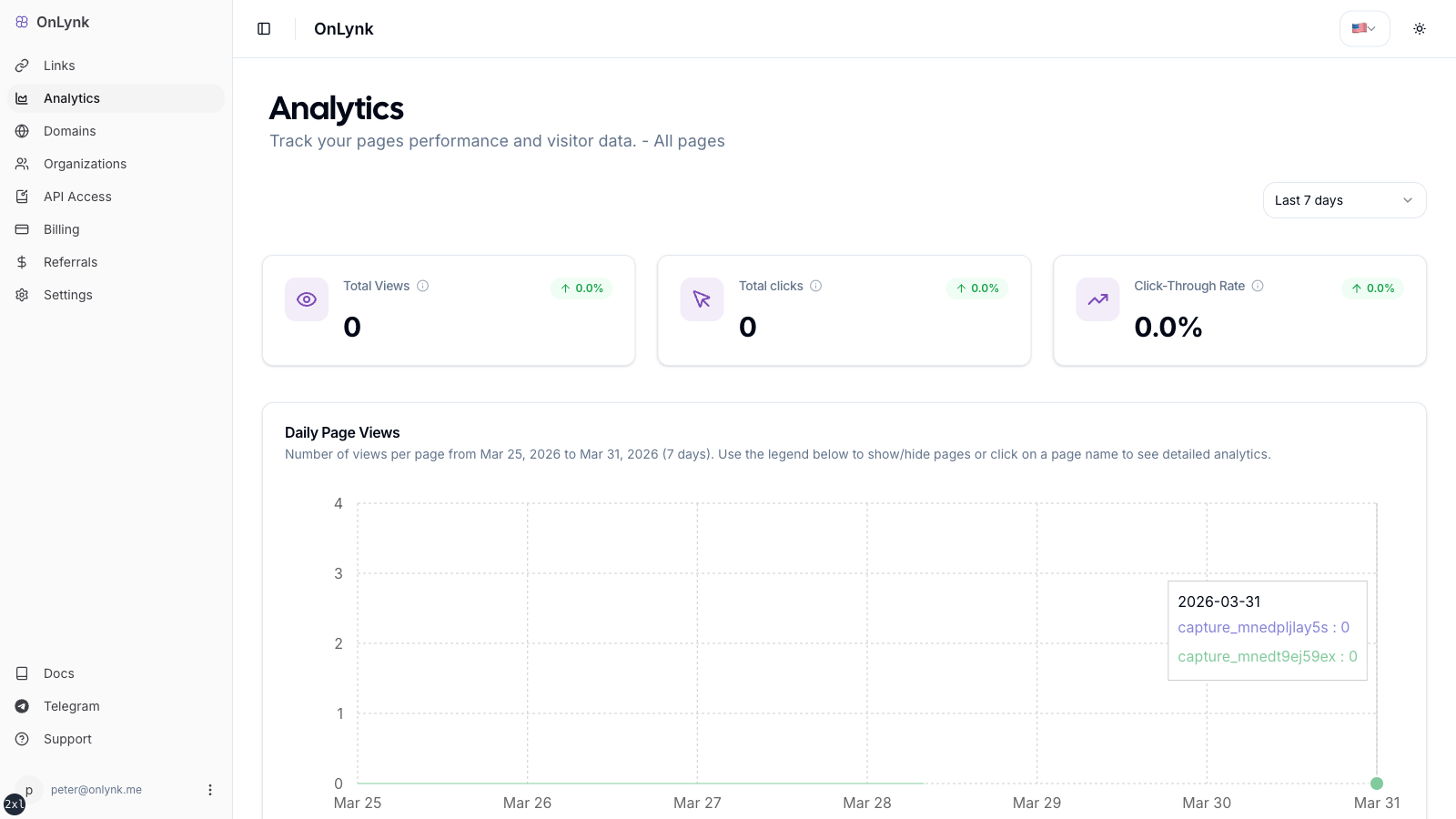
- Analytics — traffic, referrers, geography, and clicks over a date range. See Page analytics.
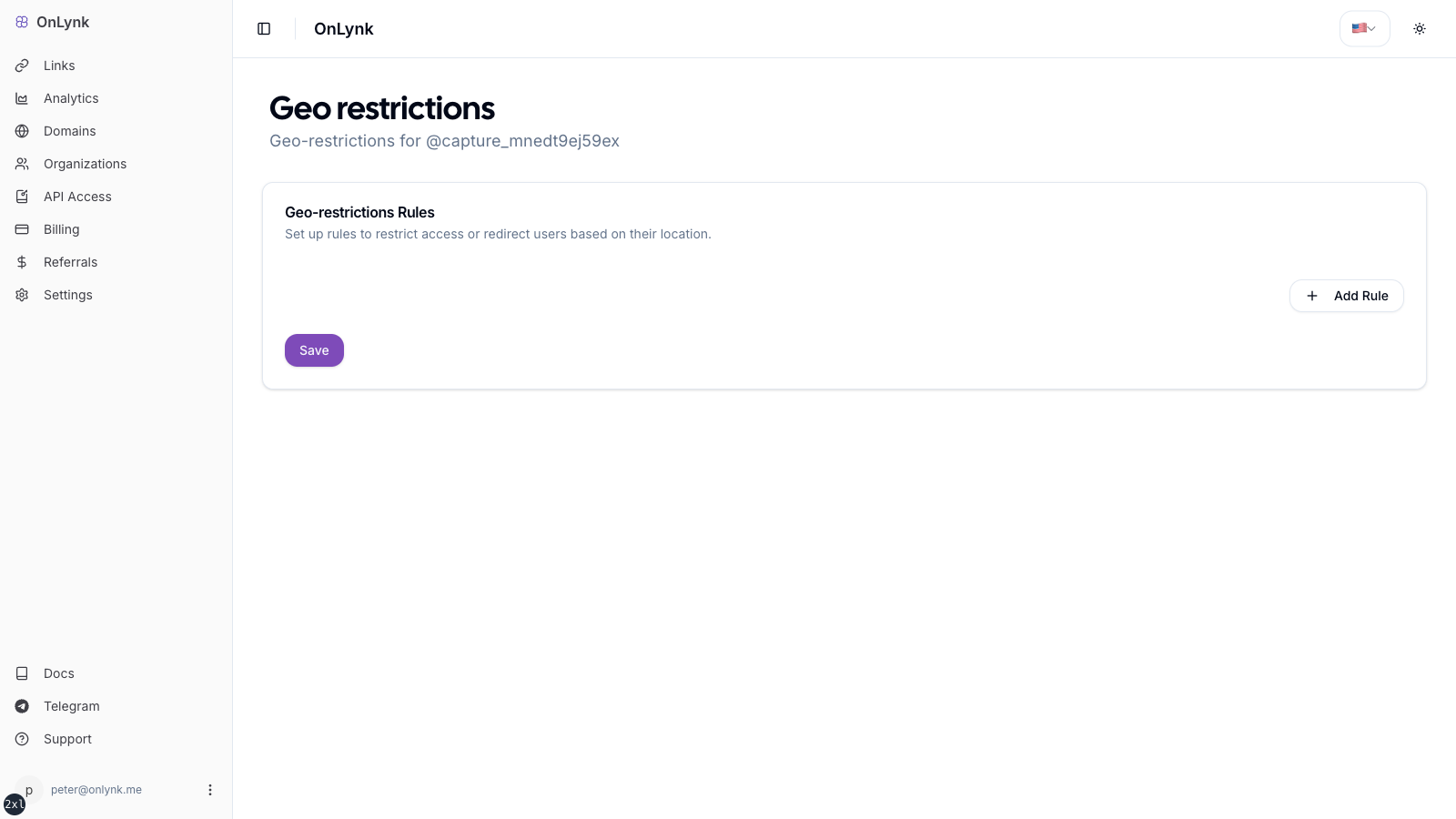
- Geo-restrictions — country / city rules with BLOCK, REDIRECT, or PAGE actions, evaluated per request. See Geo-restrictions.
Limitations
Section titled “Limitations”- How many pages you can publish at once depends on your plan.
- Features such as direct link, advanced customization, Meta Pixel, geo-restrictions, chatbot, cloaking, analytics, and custom domains require the matching plan entitlements.
- Slug rules are fixed; see the table above.
Why is my page not public?
Section titled “Why is my page not public?”Common causes: Published is off, a custom domain is misconfigured or not verified, or you have reached your plan’s published quota.
“Direct links not available in your plan”
Section titled ““Direct links not available in your plan””Upgrade to a plan that includes direct links, or remove reliance on the direct-link field.