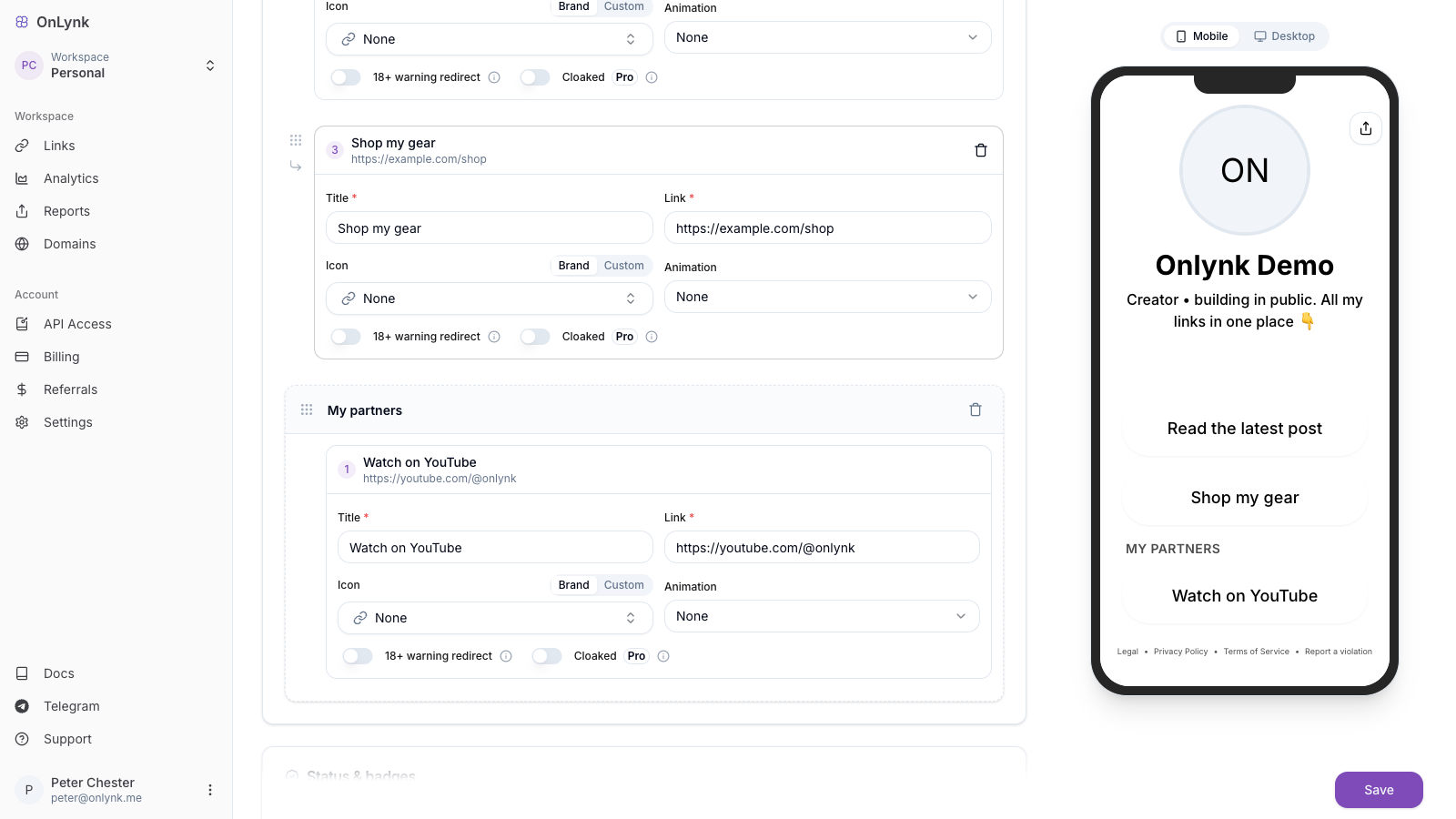
What it is: Content categories (called sections in the editor) let you organize a link page into named groups — for example “My socials”, “Shop”, or “Partners” — instead of one long, flat list of buttons and cards.
Content tab — add a section and drag links and cards into it; sections and ungrouped items share one order.
## Why use sections
A link page can quickly accumulate dozens of links and cards. Sections help visitors scan and find what matters:
- **Group related content** under a clear heading (e.g. *“Latest videos”*, *“Affiliate offers”*).
- **Order everything yourself** — sections and ungrouped items share one continuous sequence, so you decide exactly what appears first.
- **Mix links and cards** inside the same section.
Items that are **not** assigned to a section render at the **page root**, interleaved with your sections in the order you set.
## How it works
Each section is a named container with its own position on the page:
| Concept | Behavior |
|---|---|
| **Section title** | The heading shown above the grouped items on your public page. |
| **Members** | Any **link** (button) or **card** can belong to one section. |
| **Ungrouped items** | Links/cards with no section render directly at the page root. |
| **Order** | Sections and ungrouped items share **one global sequence** — there is no separate "links list" then "cards list" anymore. |
Mental model: think of your page as a single ordered stream of blocks. Some blocks are standalone links or cards; others are sections that contain links and cards. You drag any block to any position.
## Editing sections
Sections are managed in the **Content** tab of the page editor:
1. Open your link page in the dashboard → **Edit** → **Content** tab.
2. Use **Add section** to create a new named group.
3. **Rename** a section by editing its title field.
4. **Add links and cards** to a section, or drag existing items into it.
5. **Drag and drop** to reorder items within a section, move them between sections, or reorder the sections themselves relative to ungrouped items.
6. **Remove** a section when you no longer need it — its items are not deleted, they return to the page root.
7. **Save** to publish the new structure.
## Ordering
Ordering is unified across the whole page:
- A section and a standalone link share the **same ordering scale**, so you can place a single highlighted button **above** an entire section, or tuck a section between two cards.
- Inside a section, members keep their own order.
- Reordering is drag-and-drop in the **Content** tab and is persisted on save.
## Works with other features
- **[Create your first link page](https://docs.onlynk.me/create-your-first-link/)** — Full editor reference, including the Content tab.
- **[Page analytics](https://docs.onlynk.me/page-analytics/)** — Clicks on links and cards are tracked the same way whether or not they sit inside a section.
## Related
- **[Glossary](https://docs.onlynk.me/glossary/)** — Definition of *section* and *content ordering*.
- **[Create your first link page](https://docs.onlynk.me/create-your-first-link/)** — Where links, cards, and sections are configured.