Reference page: This is the “what each option does” guide. For the screenshot walkthrough, use Tutorial — first link page.
## What this page is (and isn’t)
Use this page when you need **every field, rule, and behavior** in the create/edit flow.
For the **visual path** through the product (marketing site → sign-up or sign-in → dashboard → editor), with screenshots, open **[Tutorial — first link page](https://docs.onlynk.me/guides/first-link-tutorial/)** instead. High-level account and plan context lives in **[Onboarding](https://docs.onlynk.me/onboarding/)**.
## Overview
In the dashboard, a **link page** (often labeled “link”) is your public landing page. It can include:
- A **header** (banner and avatar or picture)
- **Social** icons with outbound URLs
- **Link** buttons and **card** tiles that send visitors to destinations
- Optional **marketing features**—deeplink behavior, geo-restrictions, chatbot, Meta Pixel—when your plan supports them
Public availability is controlled with the **published** toggle.
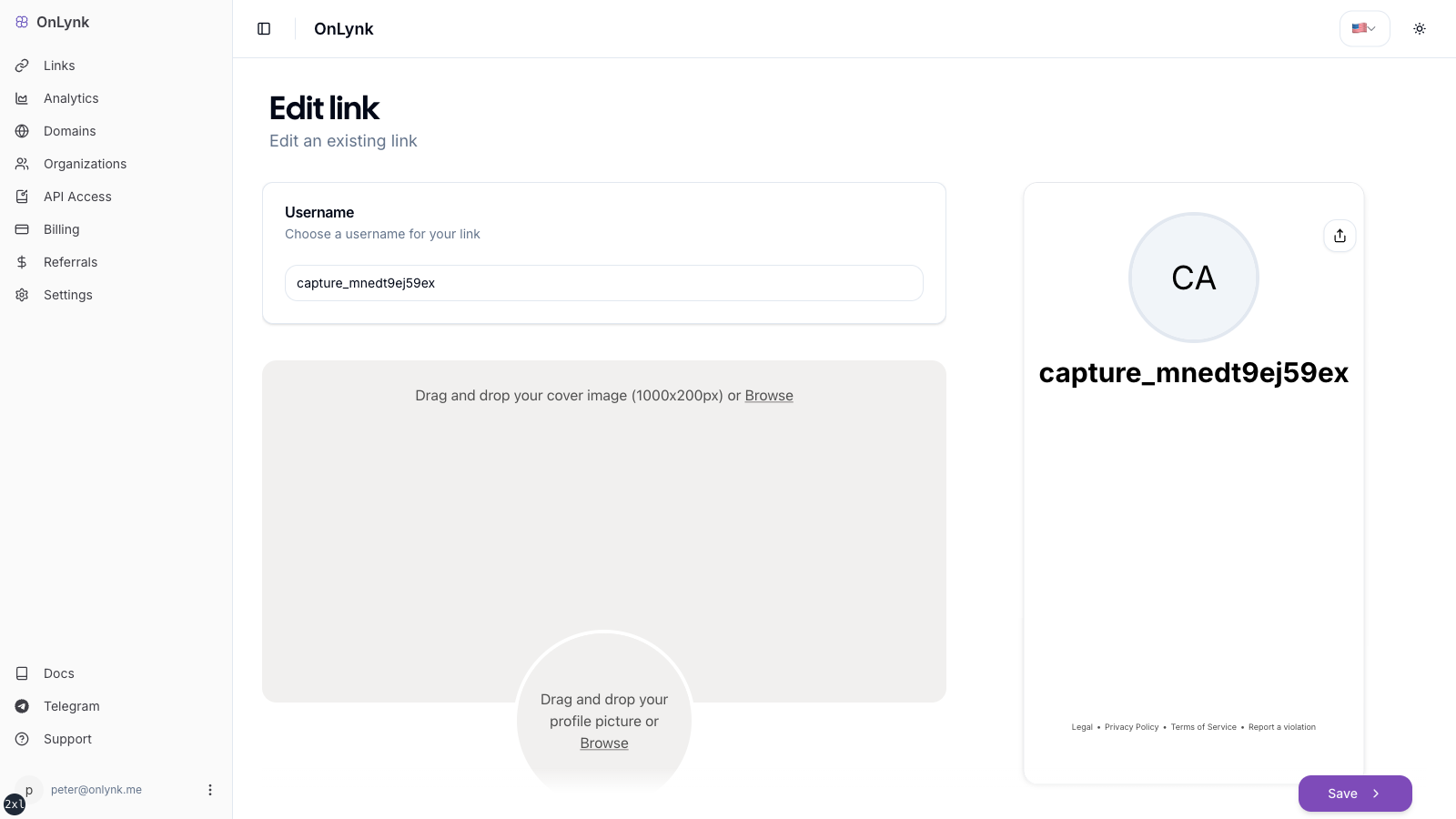
Editor (edit page) — where you configure slug, content blocks, appearance, and advanced options.
## At a glance
1. Pick a unique **slug** (username).
2. Fill **link details** (title, description, optional direct link URL if your plan includes it).
3. Add **socials**, **links**, and **cards**; reorder as needed.
4. Set **appearance** (layout style and colors).
5. Configure **advanced** and **chatbot** options if unlocked.
6. **Publish** and share your URL.
## Step-by-step
### 1. Slug (username)
In the **Username** step, define your slug:
| Rule | Detail |
| --- | --- |
| Length | 3–32 characters |
| Characters | `a-z`, `A-Z`, `0-9`, `_`, `.` |
| Dots | Not allowed at the start or end |
If the slug is taken, you will see an error (for example “username already exists”).
### 2. Link details
Under **Link details**, set:
- **Title** and **Description**
- **Direct link** (optional)—only if your subscription includes **direct links**; otherwise the field stays disabled
#### Direct link behavior (bots, fallback landing page, and risk reduction)
When **Direct link** is set, OnLynk uses it as your **primary destination**, but the exact behavior depends on **Deeplink**, **in-app browsers**, and **bot detection**.
Quick mental model: humans are routed toward your Direct link (sometimes via a deeplink attempt), while bots/crawlers stay on the landing page to reduce flags.
##### 1) Bots / crawlers (risk‑reduction path)
- If a **bot/crawler is detected**, OnLynk **stays on the landing page** (`/`) instead of auto-forwarding to the destination.
This “landing page fallback” is intentional: many social platforms run automated checks with bot-like fetchers. Serving a compliant landing page to those fetchers can reduce **flags** or enforcement risk compared to always exposing the raw destination URL.
##### 2) Humans with Deeplink **OFF**
- If **Deeplink is disabled** and the visitor is **not a bot**, the page **redirects directly** to your Direct link URL.
##### 3) Humans with Deeplink **ON** (Direct link is used for the deeplink attempt)
With **Deeplink enabled**, OnLynk still uses your Direct link as the **target URL** and then:
- In some **in‑app browsers** (Instagram, etc.), it can **attempt to open the app** via a deeplink derived from your Direct link (and may show “exit steps” when required).
- In regular browsers (not in‑app), it may still **auto-redirect** to the Direct link, but the deeplink-specific logic controls when it tries to open an app first.
Notes:
- **Query params forwarding**: when a human is redirected, OnLynk forwards query parameters from the OnLynk URL to your Direct link (while preserving parameters already present on the Direct link).
- **Analytics**: the human redirect path records a redirect event; bot traffic is handled differently (see **[AI Shield](https://docs.onlynk.me/features/ai-shield/)** and **[Glossary](https://docs.onlynk.me/glossary/)**).
- **Recommendation**: if your destination is policy-sensitive, prefer leaving Direct link empty and use the landing page + buttons/cards instead (see **[Direct link](https://docs.onlynk.me/features/direct-link/)** and **[Social media policies & risks](https://docs.onlynk.me/social-media-risks/)**).
Tip: If you’re getting link blocks or account limits, stop using Direct link for a while and share the /{``} landing page instead. Keep destinations compliant (see Compliance).
### 3. Socials
In **Social manager**:
- Use **Add social link** for each network
- Choose the network type and paste the URL
- Drag and drop to reorder
### 4. Links (buttons)
In **Links manager**, each button supports:
- **Title** and **Link (URL)** (required)
- **Icon**, **animation / effect** (optional)
- **Adult content** confirmation (optional)
- **Cloaked** (optional)—only if your plan includes **cloaking**
**Redirect behavior**
- **Not cloaked**: visitors go to the URL you entered.
- **Cloaked**: the public URL uses OnLynk’s token path `/go/`, which resolves server-side to your real destination.
### 5. Cards
In **Cards manager**, configure:
- **Title**, **Link (URL)**, **Card image**
- Optional **icon**, **adult content**, and **cloaked** (same cloaking rules as links)
### 6. Appearance
Under **Appearance**:
- **Page style**: `Default` or `Full`
- Colors: background, card background, text, button fill, button text (`backgroundColor`, `cardBackgroundColor`, `textColor`, `buttonsColor`, `buttonsTextColor`)
### 7. Advanced customization
If your plan allows **Advanced customization**, you may enable:
- **City** display (with optional custom **city** label text)
- **Online** indicator, **response delay**, **promotion** text
- **Meta Pixel**: toggle on and set **Meta Pixel ID**
### 8. Chatbot
If **chatbot** is on your plan, under **Chatbot configuration**:
- Add up to **three** messages (`chatbotMessages`)
- Optionally set **chatbot link**—where users go after the sequence (`chatbotLink`)
## Publishing
1. New pages are generally created **published** and often with **deeplink** enabled by default.
2. Use the **Published** switch in the page actions:
- **On**: the page is served to the public (subject to domain and plan rules)
- **Off**: the page is not shown as a public destination
## Limitations
- How many pages can be **published** at once depends on `plan.links`.
- Features such as direct link, advanced customization, Meta Pixel, geo-restrictions, chatbot, cloaking, analytics, and custom domains require the matching plan entitlements.
- Slug rules are fixed; see the table above.
## FAQ
### Why is my page not public?
Common causes: **Published** is off, a **custom domain** is misconfigured or not verified, or you have reached your plan’s **published** quota.
### “Direct links not available in your plan”
Upgrade to a plan that includes **direct links**, or remove reliance on the direct-link field.