Tip: Use analytics to validate changes: publish → share → compare referrers, clicks, and geography over the same time window.
## Overview
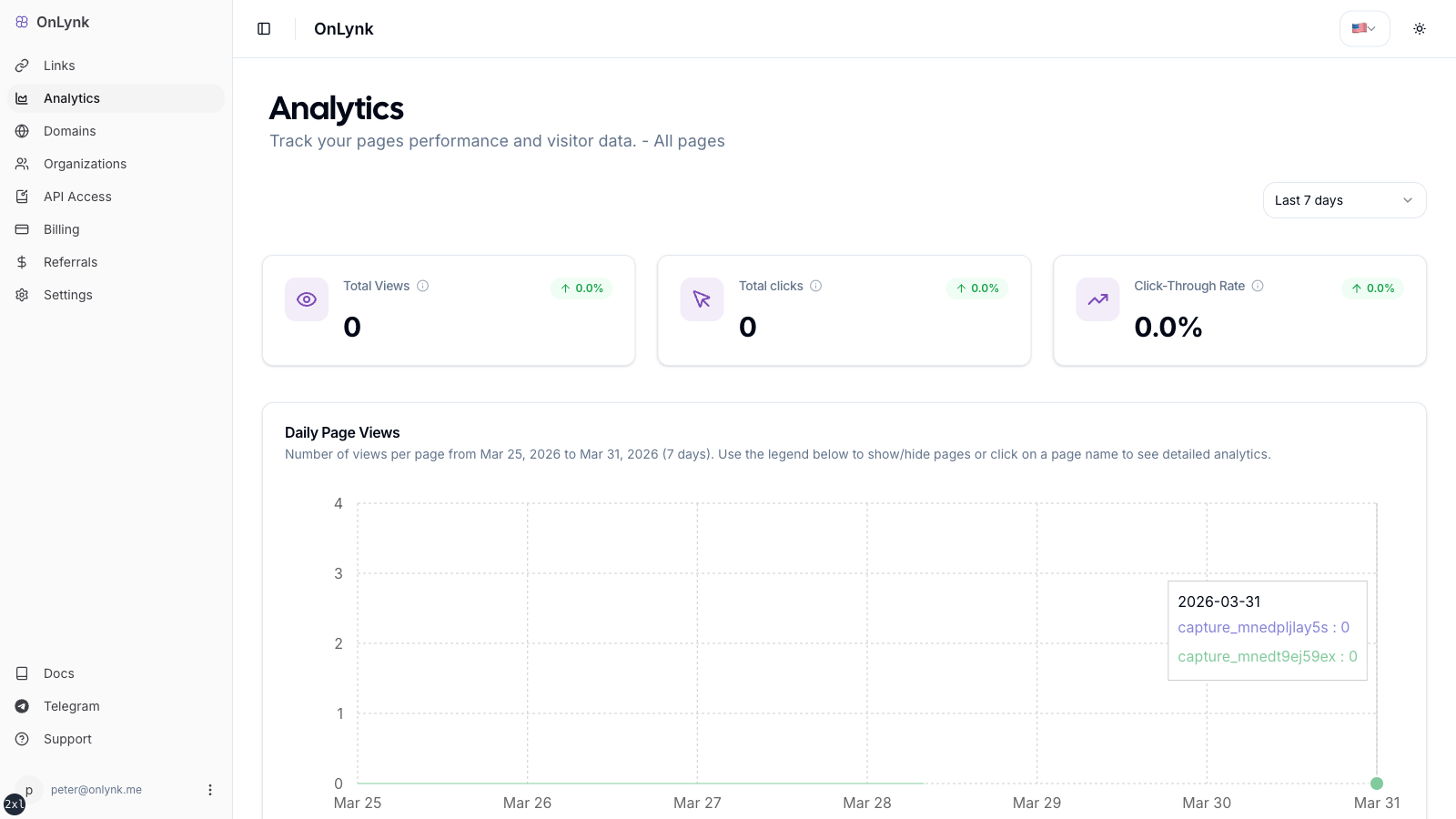
**Analytics** (when included in your plan) summarizes how visitors engage with your public **link pages**: traffic volume, button and card clicks, top referrers and countries, device breakdowns, and recent visitors—depending on what the dashboard exposes for your role.
Availability depends on your plan.
Analytics in the dashboard: charts, filters, and link performance metrics per page.
## What gets recorded
1. **Page views** when someone loads your public page (bot traffic is classified separately from normal views).
2. **Link** and **card** clicks when visitors tap your buttons and tiles.
3. **Direct link** and other **redirect** events when your page configuration triggers them.
4. **Geo-restrictions:** **BLOCK** and **REDIRECT** outcomes contribute to the corresponding metrics (redirect behavior may differ for bots—see [Geo-restrictions](geo-restrictions)).
5. **Chatbot** interactions when the chatbot is enabled and used.
## What you see in the dashboard
Typical dimensions (exact labels may vary by UI version):
- **Traffic volume** — Views and clicks over a selectable period
- **Geography** — Country-level (and related) breakdowns where available
- **Referrers** — Which sites or apps sent visitors
- **Devices / clients** — High-level device or agent categories
- **Per-link performance** — Which outbound URLs earn clicks
### Using the analytics UI
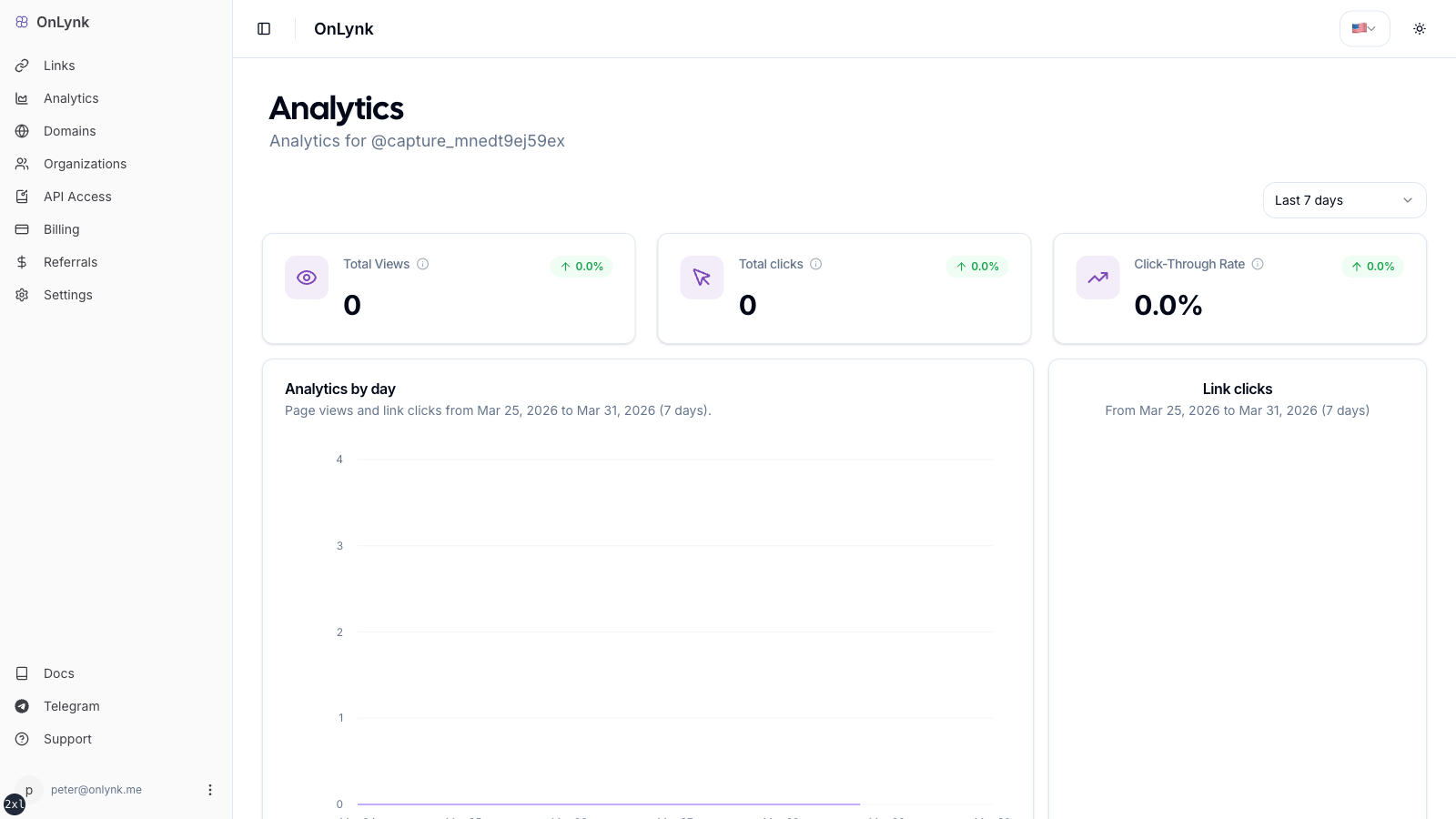
1. From a page, open **Analytics**.
2. Select a **date range** (presets such as 7 / 30 / 90 days or a custom range, depending on the UI).
3. Review:
- **KPIs** — headline numbers for the period
- **Trends** — daily views and clicks
- **Top links** — destinations receiving the most clicks
- **Referrers** — where traffic originated
- **Countries** — geographic distribution
- **Devices** — device or agent categories
- **Recent visitors** — latest sessions (with pagination if present)
Per-page analytics screen: inspect trends, referrers, geography, and click performance over time.
## Access
- You must be allowed to open that page in the dashboard (personal author or org member with the right role).
- Your subscription must include **analytics**.
## Limitations
- Some **VIEWER** roles may see limited or no analytics; the UI will indicate missing permission.
- Without an **analytics** entitlement, the analytics experience may be unavailable or redirect you away.
## Public API
If you use analytics to make decisions, keep comparisons fair: use the same time window before/after changes (new links, new cards, or a Direct link change).
## FAQ
### Why are my numbers lower than expected?
Typical reasons: the page is not **published**, traffic is classified as **bot** (and counted differently), or you have few **links/cards** configured so there is little to click.
### Where are event type definitions?
See **[Glossary](https://docs.onlynk.me/glossary/)** for analytics terms used in the UI (views, clicks, referrers, and geography).