Per-page feature: Geo-restrictions are configured per link page. Start with one simple rule, then expand.
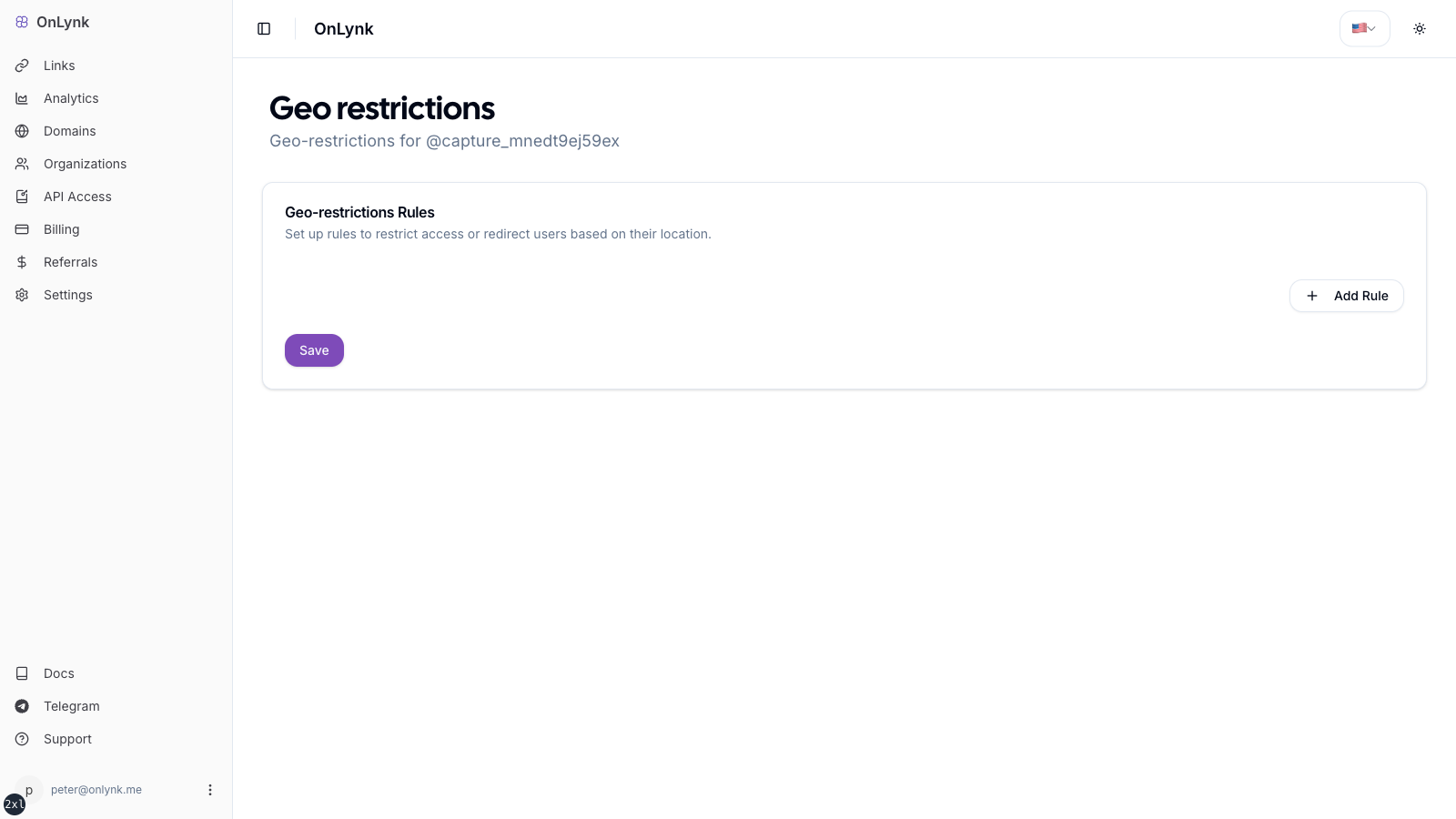
Geo-restrictions editor: add country/city rules and choose BLOCK, REDIRECT, or PAGE per rule.
## Overview
**Geo-restrictions** change what happens when someone opens your link page based on their approximate location (country or city).
Use cases:
- Redirect US visitors to your English site, EU visitors to your French site
- Block access from countries where your product isn't available
- Show a regional-specific page (promotions, pricing, legal notices)
For each page you can define rules with one of three **actions**:
| Action | Behavior |
|---|---|
| **Block** | Visitor sees a 404. They cannot access your page from that location. |
| **Redirect** | Visitor is sent to a different URL you specify. |
| **Show another page** | Visitor is sent to a different OnLynk page (your own). |
## Before you start
- Your subscription must include geo-restrictions (Creator or Agency plan).
- You need edit access to the page.
## Configure in the dashboard
1. Sign in to **[onlynk.me](https://onlynk.me/)** and open the **dashboard**
2. Go to **Links** and select the page you want to configure
3. Open **Geo-restrictions** for that page (icon or section in the row)
4. Click **Add rule** and fill in:
- **Type:** `country` or `city`
- **Country** (and **city** when using city-level rules)
- **Action:** `BLOCK`, `REDIRECT`, or `PAGE`
5. Fill in action-specific fields:
- **REDIRECT:** enter the destination URL
- **PAGE:** select the target OnLynk page from the picker
6. **Save**
A visual indicator on your links list confirms geo rules are active on a page.
Each rule specifies a location (country or city), an action, and — for REDIRECT/PAGE — a destination.
## Geolocation accuracy
OnLynk uses **IP-based geolocation**:
- **Country-level** accuracy is very high (> 99% for most regions)
- **City-level** accuracy varies (typically 50–80 km radius) — it is approximate, not GPS-precise
- Visitors using **VPNs** or **proxy servers** may appear to be in a different country — you cannot reliably block or redirect VPN users since their visible IP differs from their actual location
## Bot handling
- **`REDIRECT` rules** — Bots are **not** redirected. Automated traffic sees your normal landing page instead of the destination URL (so crawlers don't follow your redirects).
- **`BLOCK` rules** — Block applies to **everyone** including bots; they receive a 404.
## How to test your geo rules
Since you can't change your real location, use one of these methods:
**Method 1 — VPN**
1. Connect a VPN to the country you configured a rule for
2. Open your link page in an incognito window
3. Verify the expected action fires (redirect, block, or page swap)
**Method 2 — Browser DevTools (redirect only)**
1. Open DevTools → Network tab
2. Visit your page and inspect the HTTP responses
3. You won't see geo rules trigger from your real location, but you can confirm the page loads normally
**Method 3 — Staging slug**
1. Create a second link page with the same rules
2. Ask a contact in the target country to test it for you
## Limitations
- Rules apply to the **country** and **city** types only (no postal code or IP-range rules in the dashboard)
- Rule order matters if you define multiple overlapping rules — rules are evaluated **top to bottom**; the first match wins
- City rules require the country to be selected first
## FAQ
### A visitor from the correct country wasn't redirected
Most likely cause: they were using a **VPN** or proxy. IP geolocation uses the IP's apparent location, not the device's real location. This is expected behavior.
### My rule is set but the indicator doesn't show on the links list
Save the rule and do a hard refresh (`Cmd+Shift+R`). If it still doesn't appear, check that the rule was saved correctly by re-opening the geo-restrictions section.
### Can I redirect to an external URL and to an OnLynk page with different rules?
Yes — add two separate rules. Example: `US → REDIRECT → https://en.mysite.com` and `FR → PAGE → my-french-page`.
### Does blocking a country affect my analytics?
Yes — `BLOCK` events are recorded as `BLOCK` type in analytics. Redirects are recorded as `REDIRECT` events. Both contribute to your page's event history.
### Can I use geo rules without a custom domain?
Yes — geo rules work on the default `onlynk.me/` URL and on custom domains.
## Related
- **[AI Shield](https://docs.onlynk.me/features/ai-shield/)** — Bot classification that interacts with REDIRECT rules
- **[Page analytics](https://docs.onlynk.me/page-analytics/)** — BLOCK and REDIRECT event types
- **[Glossary](https://docs.onlynk.me/glossary/)** — Definitions for geo events and bot behavior